To convert a server from the evaluation version to the retail version, you need to execute a few PowerShell commands.
Follow the guide! 😎
First, open Windows PowerShell.
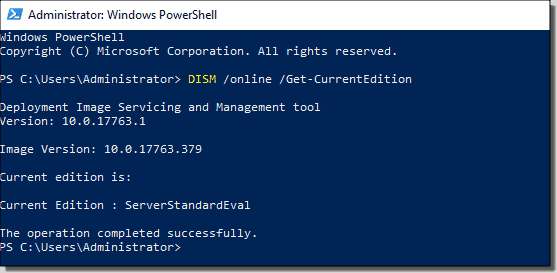
Use the following command to check the currently running version:
DISM /online /Get-CurrentEdition
You will get a response displaying your current version. In this process we expect an Evaluation version of your Windows Server version.
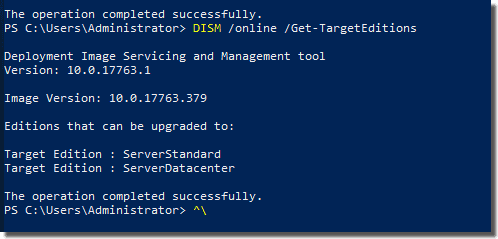
 Now we can get the list of editions you can convert your current Evaluation edition to:
DISM /online /Get-TargetEditions
Then you should get the following output:
 * If you do not have the product key, please purchase one from us.So to upgrade from Evaluation to Standard, use the following command:
DISM /Online /Set-Edition:ServerStandard /ProductKey:xxxxx-xxxxx-xxxxx-xxxxx-xxxxx /AcceptEula
From Evaluation to Datacenter, use the following command:
DISM /Online /Set-Edition:ServerDatacenter /ProductKey:xxxxx-xxxxx-xxxxx-xxxxx-xxxxx /AcceptEula
You will get a prompt to reboot the server which will change its edition. Type “Y,” and the server will reboot!
Congratulations, you have successfully converted from an evaluation edition to a retail edition!